CAN interface raspberry pi
https://github.com/victronenergy/venus/wiki/RaspberryPi-CAN-Interfaces
====== Victron MultiPlus 3000: Firmware v502 to v558 Changes ======
Updating from firmware v502 to v558 introduces critical stability improvements and regulatory compliance features.
===== Key Improvements =====
==== Generator & AC Input (v556) ====
Improved Stability: Significant enhancements to system stability for Charge and PowerAssist when connected to generators.
Weak AC Input: In many cases, the system can now maintain a stable connection to generators without needing the "Weak AC" setting enabled, allowing for higher charge currents.
==== Regulatory Compliance (v556) ====
German §14a EnWG Support: Integrated support for German power grid regulations.
Power Limiting: When the AUX 2 input is closed, the system limits battery charging to 4.2 kW. This is a default setting in current VEConfigure versions.
==== VRM & Bug Fixes (v558) ====
Remote Switch Fix: Resolved an issue where the Inverter/Charger control switch would disappear from the VRM Portal dashboard.
Stability: General bug fixes and performance optimizations accumulated since v502.
===== Upgrade Precautions =====
^ Step ^ Action ^
| 1 | Backup Settings: Firmware updates reset the unit to factory defaults. Save your config via VEConfigure first. |
| 2 | ESS Users: You may need to remove the ESS Assistant, set Grid Code to "None," and then re-add the Assistant after the update. |
| 3 | Verification: Manually re-check battery charge voltages (Absorption/Float) and current limits after restoring your settings. |
Note: Always use the latest version of VictronConnect or VEFlash to perform the update.
Do you need help with the specific wiring for the AUX 2 input to meet the German grid requirements, or are you ready to backup your configuration?
AI responses may include mistakes. Learn more
====== mqtt cmds ======
* send the following with mqtt and all data is recived.
R/e45f01bd8b47/keepalive
example -
* change SSH settings
Topic: W/e45f01bd8b47/settings/0/Settings/System/SSHLocal
Payload: {"value": 0} (disable) {"value": 1} (enable)
N/e45f01bd8b47/system
["vebus/#", "solarcharger/+/Dc/0/Voltage"]
====== grid code victron ======
Are the off peak hours the same every day? if so, install the ESS assistant and look at scheduled charging. Alternatively set to 'keep batteries charged' and when grid /generator power becomes available it'll charge the batteries
Before you do that, put down your tools and spend a few hours working through Victron's free training program, it will save you countless extra hours of locking your system with passwords, setting it up incorrectly and posting on forums for advice, lol
https://www.victronenergy.com/information/training
grid password is TPWMBU2A4GCC (which is in the training docs!)
====== multipluss 2 remote switch ======
https://communityarchive.victronenergy.com/questions/212967/multiplus-ii-physical-remote-switch-for-on-and-cha.html
====== venus os energy save ======
block wifi bluetooth
https://community.victronenergy.com/questions/112030/how-to-minimize-power-consumption-of-venus-os-rasp.html
====== victron ess setup ======
https://www.youtube.com/watch?v=ACsS0xqpGb8
====== display ======
https://youtu.be/EmuM_BKOsLY?feature=shared
====== Venus OS page ======
raspberry pi install https://github.com/victronenergy/venus/wiki/raspberrypi-install-venus-image
====== Home assistant integration ======
* mosquitto config
➜ ~ cd /share/mosquitto
➜ mosquitto ls -la
➜ mosquitto cat victron.conf
connection victron
address 10.11.12.141:1883
topic N/# in 0 victron/
topic R/# out 0 victron/
topic W/# out 0 victron/
keepalive_interval 5
restart_timeout 5 10
cleansession false
remote_username **
remote_password **
* sensor config
/config/configuration.yaml
mqtt: !include mqtt-victron.yaml
mqtt-victron.yaml
sensor:
# Solarcharger Voltage
- name: "Solar Charger Voltage"
device_class: voltage
state_topic: "victron/N/e45f01bd8b47/solarcharger/288/Dc/0/Voltage"
value_template: '{{ value_json.value|float(0)|round(1) }}'
unit_of_measurement: "V"
# PV Solarcharger Voltage
- name: "PV Solar Charger Voltage"
device_class: voltage
state_topic: "victron/N/e45f01bd8b47/solarcharger/288/Pv/V"
value_template: '{{ value_json.value|float(0)|round(1) }}'
unit_of_measurement: "V"
# PV Solarcharger Load Amp
- name: "PV Solar Charger Load Amp"
device_class: current
state_topic: "victron/N/e45f01bd8b47/solarcharger/288/Load/I"
value_template: '{{ value_json.value|float(0)|round(1) }}'
unit_of_measurement: "A"
# PV Battery Load Power
- name: "PV Battery Load Power"
device_class: power
state_topic: "victron/N/e45f01bd8b47/system/0/Dc/Battery/Power"
value_template: '{{ value_json.value|float(0)|round(1) }}'
unit_of_measurement: "W"
# PV System DC Power
- name: "PV System DC Power"
device_class: power
state_topic: "victron/N/e45f01bd8b47/system/0/Dc/Pv/Power"
value_template: '{{ value_json.value|float(0)|round(1) }}'
unit_of_measurement: "W"
https://community.home-assistant.io/t/victron-venus-os-with-mqtt-sensors-switches-and-numbers/527931
====== Gist Home assistant integration ======
https://www.imval.tech/index.php/blog/victron-mqtt-server-bridging
https://gist.github.com/KidA001/dc5584db340cf3ad513f9415b20ed5fa
http://www.steves-internet-guide.com/mosquitto-bridge-configuration/
https://community.home-assistant.io/t/multiply-sensor-value-with-another-value/15476
# Victron Data in HomeAssistant
I love HomeAssistant and I also love my Victron Equipment. I knew they provided data over ModBus and MQTT and a while back I was determined to pull the data into HomeAssistant. I live fully off-grid and it's extremely helpful to know what the state of my system is whereever I am. I also built many automations that help me optimize my available power. Below is a walk through on pulling in Victron data to HomeAssistant over MQTT.
## Pre-reqs
These are needed before proceeding:
- HomeAssistant (Duh!)
- Some type of [VenusOS](https://www.victronenergy.com/live/venus-os:large) Device, you'll need the IP and it should be set to a static IP
- [SSH & Web Terminal](https://community.home-assistant.io/t/home-assistant-community-add-on-ssh-web-terminal/33820) HomeAssistant Add-On (Used for editing a mosquitto conf file)
- FileEditor Add-On (Used to edit HomeAssistant config files and sensors)
- A MQTT GUI, I use [MQTT Explorer](http://mqtt-explorer.com/) (Not needed, but helpful to ensure things are working)
Note: I use HomeAssistant & HA interchangibly.
### Enable MQTT On your VenusOS Device
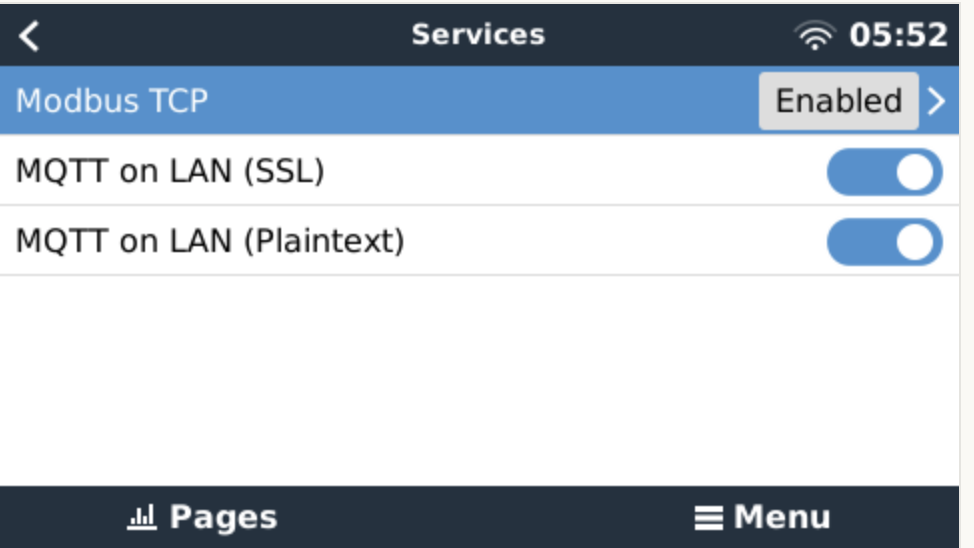
Go to the IP address of your Venus device in your web browser. From there go to **Settings > Services** and enable Modbus, MQTT (SSL) and MQTT (Plaintext)
 ### Setup Mosquitto MQTT Broker
From your HomeAssistant instance go to **Settings > Add-Ons** and click the **AddOn Store** button and search for **Mosquitto broker**. Select it and install.
In the **Configuration** tab of Mosquitto go to the **Customize** section and ensure `active: true` and `folder: mosquitto` are set:
### Setup Mosquitto MQTT Broker
From your HomeAssistant instance go to **Settings > Add-Ons** and click the **AddOn Store** button and search for **Mosquitto broker**. Select it and install.
In the **Configuration** tab of Mosquitto go to the **Customize** section and ensure `active: true` and `folder: mosquitto` are set:
 ### Setup a bridge between your Victron MQTT and HomeAssistant/Mosquitto
This allows all data from Victron to be mirrored on your HomeAssistant's Mosquitto Broker. This is the corret way to setup MQTT from Venus on HA instead of using the VenusOS device as a MQTT server.
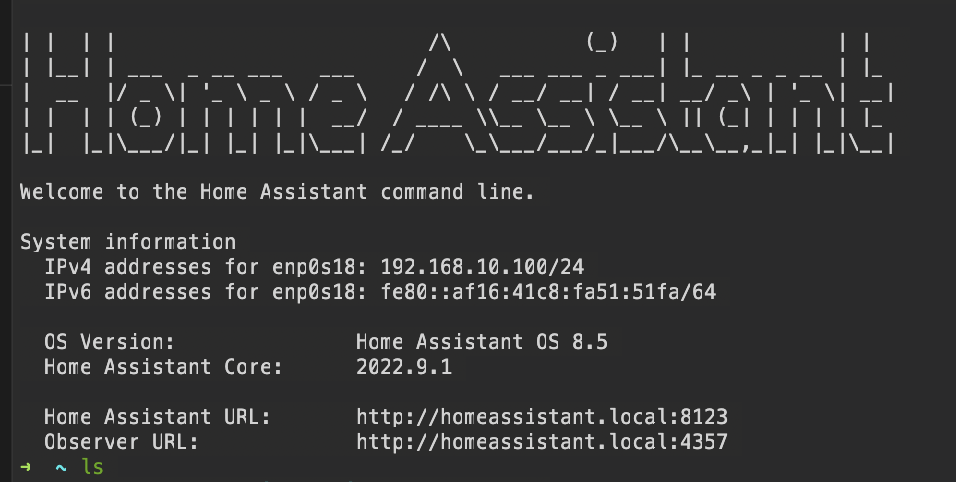
Open the Teriminal Web View in HomeAssistant, there should be a button in your Nav menu on the left if you already installed it into HomeAssitant. It should bring you to a HomeAssistant console like below:
### Setup a bridge between your Victron MQTT and HomeAssistant/Mosquitto
This allows all data from Victron to be mirrored on your HomeAssistant's Mosquitto Broker. This is the corret way to setup MQTT from Venus on HA instead of using the VenusOS device as a MQTT server.
Open the Teriminal Web View in HomeAssistant, there should be a button in your Nav menu on the left if you already installed it into HomeAssitant. It should bring you to a HomeAssistant console like below:
 From there lets go into the mosquitto directory with:
```bash
cd /share/mosquitto
```
Then lets create the file we'll use for victron config with:
```bash
touch victron.conf
```
Now lets edit that file and add some config. Open in nano editor with
```bash
nano victron.conf
```
Add the following config and replace `your.venus.ip.address` with your VenusOS IP Address:
```bash
connection victron
address your.venus.ip.address:1883
topic N/# in 0 victron/
topic R/# out 0 victron/
```
Hit `cntrl + x` and then `y` and `enter` at the prompt to save. Go back to the Mosquitto Broker AddOn and restart the service.
### Add a MQTT User in HomeAssistant
In HA you need to create a User account that will be used to login to the MQTT Server you just setup. In HA go to **Settings > People** and select the **Users** tab at the top. Create a user with a username & password, note this for the next couple steps:
From there lets go into the mosquitto directory with:
```bash
cd /share/mosquitto
```
Then lets create the file we'll use for victron config with:
```bash
touch victron.conf
```
Now lets edit that file and add some config. Open in nano editor with
```bash
nano victron.conf
```
Add the following config and replace `your.venus.ip.address` with your VenusOS IP Address:
```bash
connection victron
address your.venus.ip.address:1883
topic N/# in 0 victron/
topic R/# out 0 victron/
```
Hit `cntrl + x` and then `y` and `enter` at the prompt to save. Go back to the Mosquitto Broker AddOn and restart the service.
### Add a MQTT User in HomeAssistant
In HA you need to create a User account that will be used to login to the MQTT Server you just setup. In HA go to **Settings > People** and select the **Users** tab at the top. Create a user with a username & password, note this for the next couple steps:
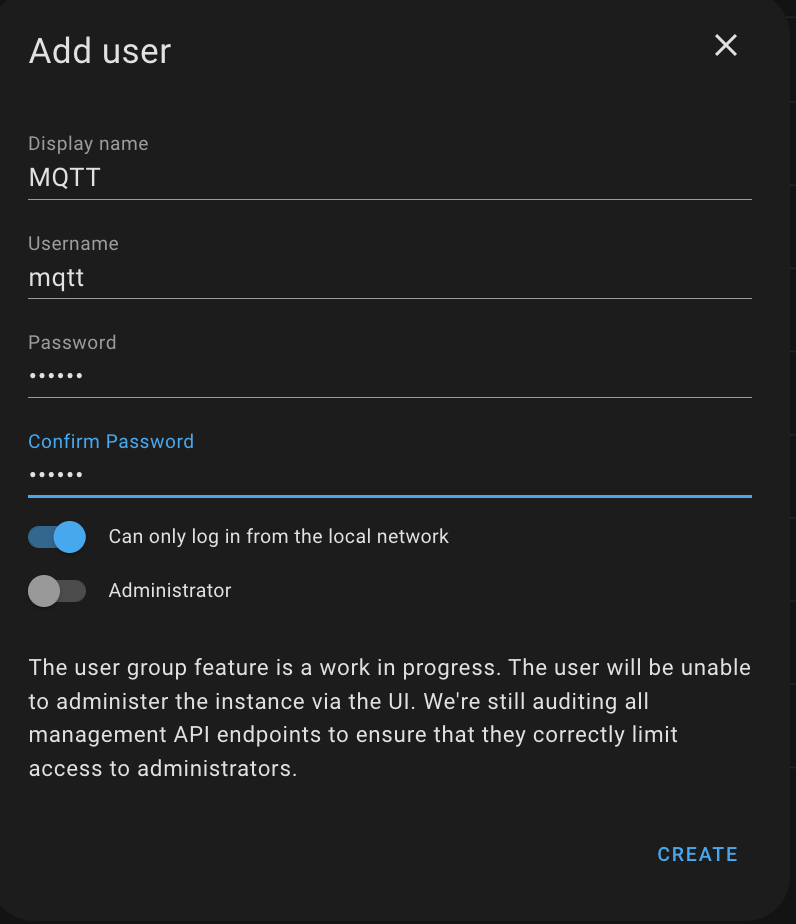 If you have issues on your network logging into your MQTT service try disabling `Can only log in from the local network`.
### Create a KeepAlive Automation
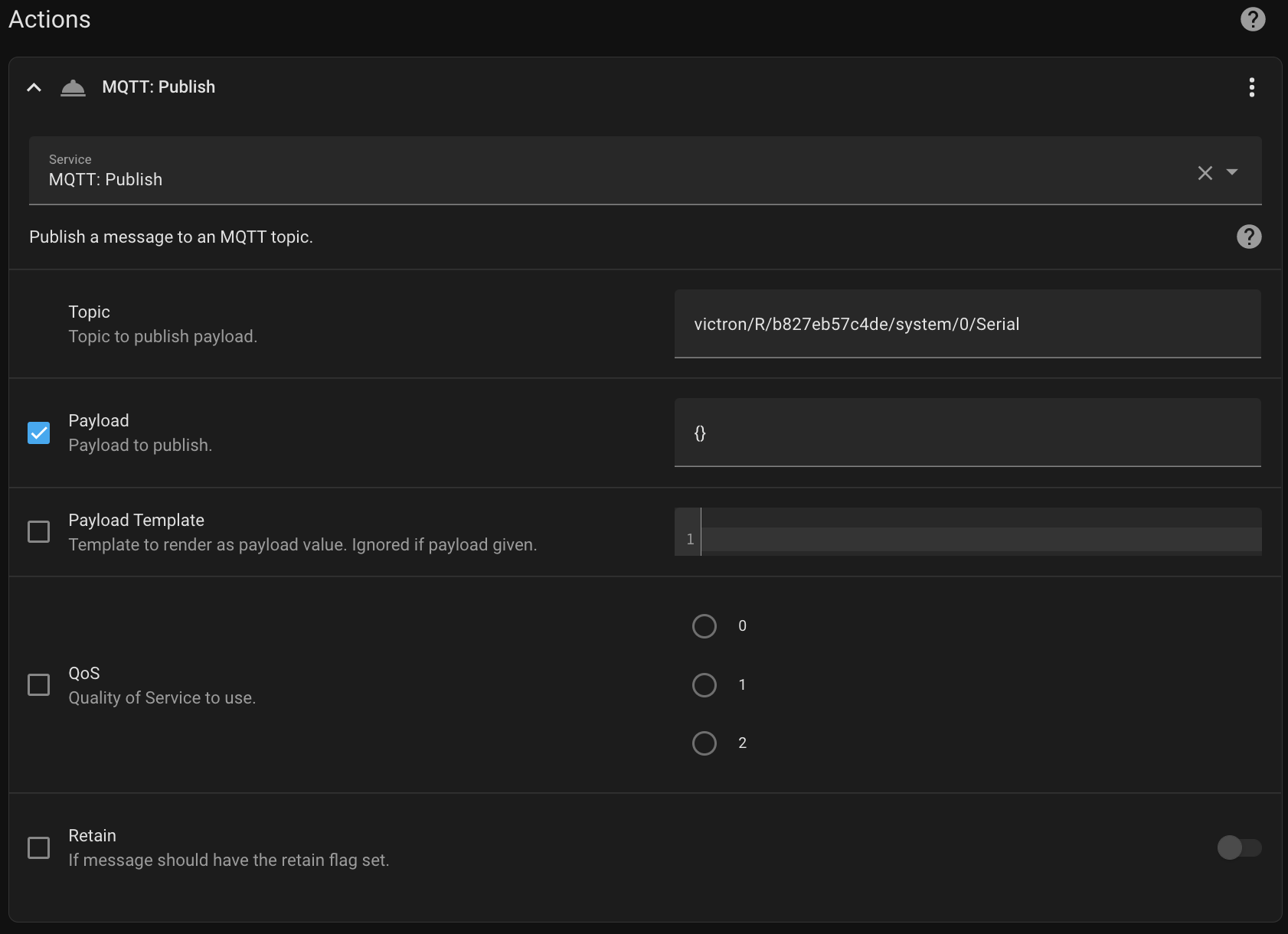
The MQTT service on Victron needs to be _kept alive_. We do this by sending a keep-alive message every 30-seconds.
In HomeAssistant go to **Settings > Automations & Scenes**, create a new Automation called `Victron MQTT KeepAlive`. The `trigger` should be `Time Pattern` and set to every 30 seconds which is expressed as `/30`
If you have issues on your network logging into your MQTT service try disabling `Can only log in from the local network`.
### Create a KeepAlive Automation
The MQTT service on Victron needs to be _kept alive_. We do this by sending a keep-alive message every 30-seconds.
In HomeAssistant go to **Settings > Automations & Scenes**, create a new Automation called `Victron MQTT KeepAlive`. The `trigger` should be `Time Pattern` and set to every 30 seconds which is expressed as `/30`
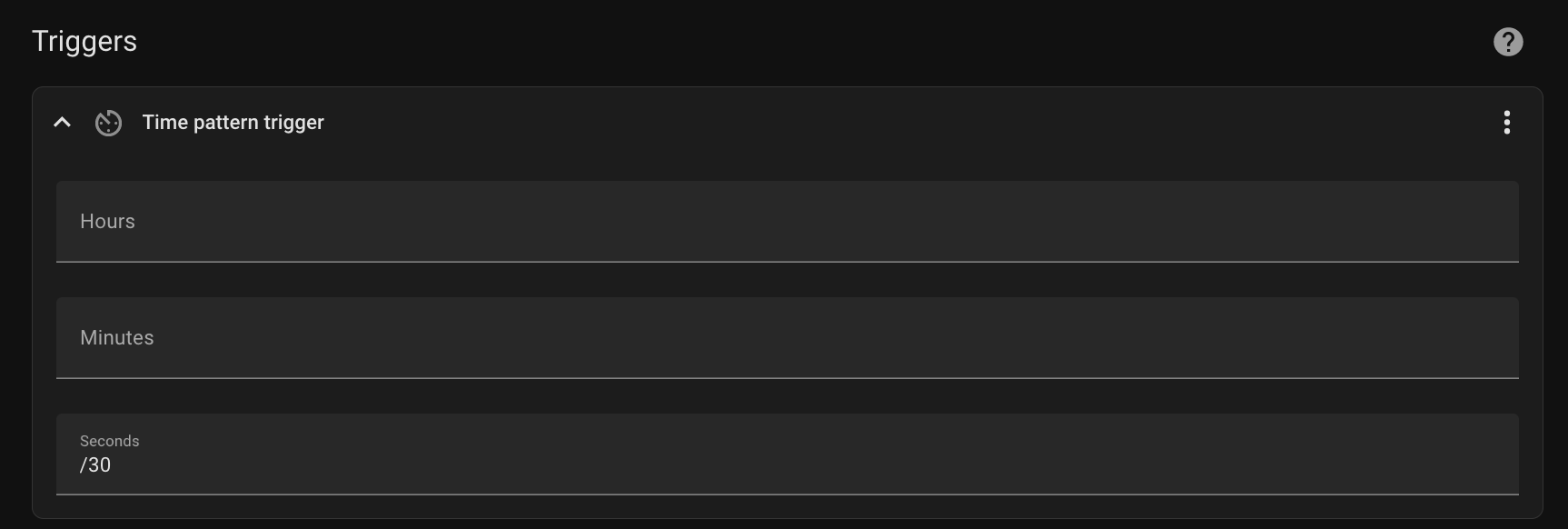 Then the action should be `Call Service` and select `MQTT: Publish`. The topic is `victron/R/your-venus-id/system/0/Serial`, payload: `{}`. Hit save and you're done.
 ### Verify Mosquitto has Victron data!
Open the MQTT GUI/Application (I use MQTT Explorer). For the Host provide the IP Address of your HomeAssistant. For User/Pass use the one you just created:
### Verify Mosquitto has Victron data!
Open the MQTT GUI/Application (I use MQTT Explorer). For the Host provide the IP Address of your HomeAssistant. For User/Pass use the one you just created:
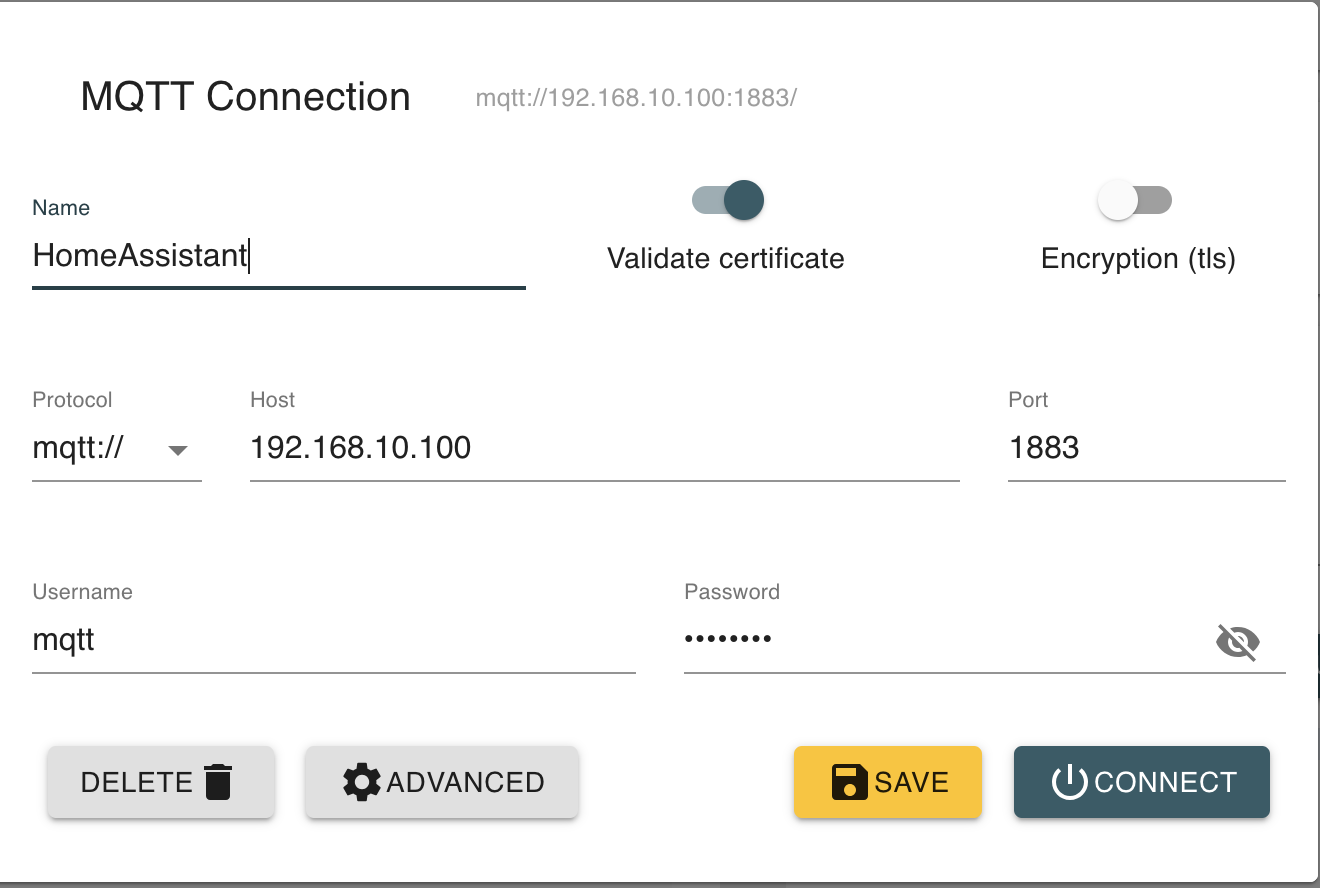 If everything is setup properly, you should start to see data from your Victron Equipment show up. It will be under the `victron/N` key. Make note of the ID beneath that, mine below is `b827eb5c4de`. This is the unique ID for your Victron System and you'll need to reference in your sensors later.
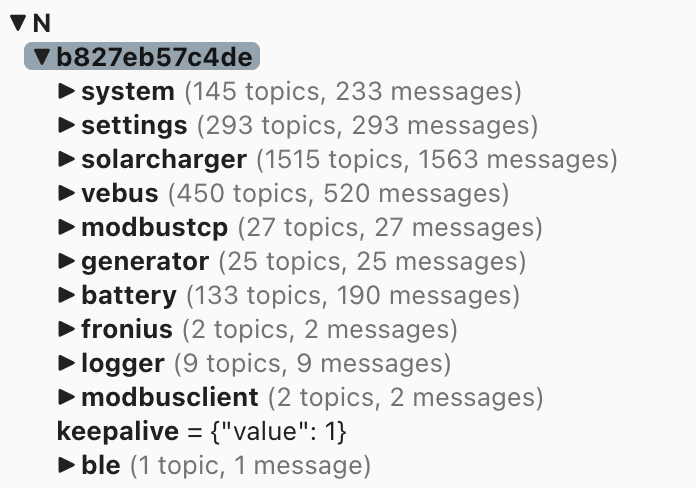 If this is working, you've done all the hard stuff!
### Add the MQTT Integration in HA
This integration allows HA to use data from MQTT as sensors..etc. Go to **Settings > Devices & Services** and click **Add Integration** at the bottom. When prompted add the IP of your HomeAssistant instance, and the username/password of the mqtt user you created.
### Add Sensors to HomeAssistant (the fun part)
You should now be able to start adding sensors in HomeAssistant that pull data from your VenusOS Device. Use the FileEditor in HomeAssistant, there should be a button in the left Navigation Pane if you've installed the AddOn. From there open the `configuration.yaml` file and add this line:
```yaml
mqtt: !include mqtt.yaml
```
Mine looks like this:
If this is working, you've done all the hard stuff!
### Add the MQTT Integration in HA
This integration allows HA to use data from MQTT as sensors..etc. Go to **Settings > Devices & Services** and click **Add Integration** at the bottom. When prompted add the IP of your HomeAssistant instance, and the username/password of the mqtt user you created.
### Add Sensors to HomeAssistant (the fun part)
You should now be able to start adding sensors in HomeAssistant that pull data from your VenusOS Device. Use the FileEditor in HomeAssistant, there should be a button in the left Navigation Pane if you've installed the AddOn. From there open the `configuration.yaml` file and add this line:
```yaml
mqtt: !include mqtt.yaml
```
Mine looks like this:
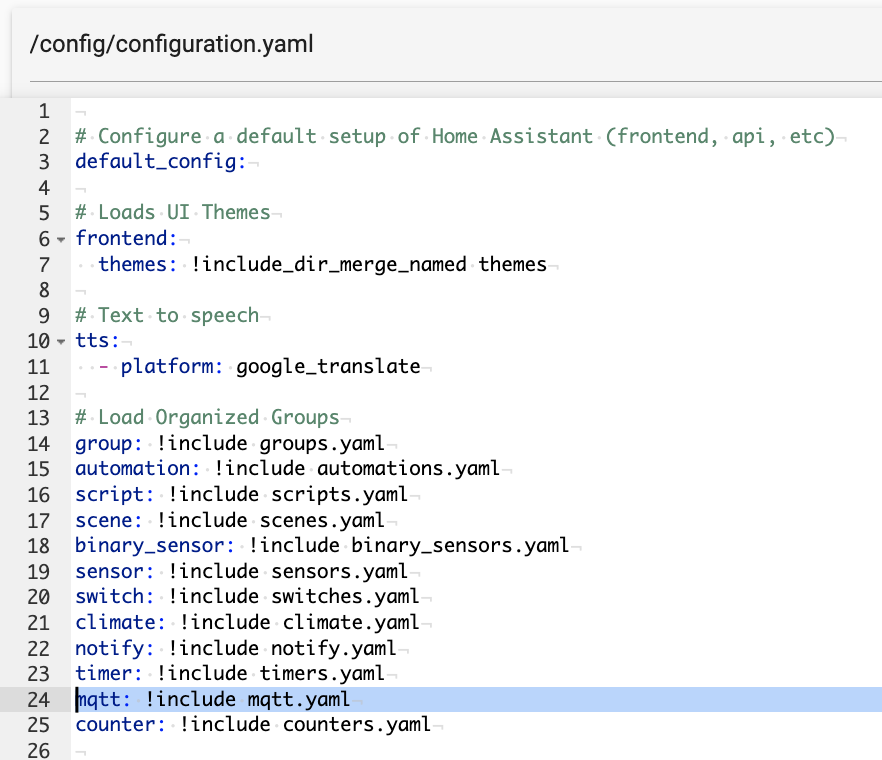 Now create a new file in the `config` dir called `mqtt.yaml` to match. Do this by clicking the folder icon in the top left and then clicking the `New File` icon.
Once you're in that new file you can start adding sensors. Below are some sensors to get you started. Replace `your-venus-id` with the unique ID we noted above. Note that the exact paths for your system may be different than mine. Use the MQTT Explorer to find the data you might want
```yaml
sensor:
# Battery percentage
- state_topic: "victron/N/your-venus-id/system/0/Batteries"
name: "Battery Percent"
device_class: battery
value_template: '{{ value_json.value[0].soc | round(0) }}'
unit_of_measurement: "%"
# AC Loads
- state_topic: "victron/N/your-venus-id/system/0/Ac/Consumption/L1/Power"
name: "AC Loads"
device_class: power
value_template: '{{ value_json.value }}'
unit_of_measurement: "W"
icon: mdi:power-socket-uk
# DC Loads
- name: "DC Loads"
device_class: power
state_topic: "victron/N/your-venus-id/system/0/Dc/System/Power"
value_template: '{{ value_json.value|float(0)|round(0) }}'
unit_of_measurement: "W"
icon: mdi:power
# Net Solar Production
- name: "Current Solar Production"
device_class: power
state_topic: "victron/N/your-venus-id/system/0/Dc/Pv/Power"
value_template: '{{ value_json.value|float(0)|round(0) }}'
unit_of_measurement: "W"
icon: mdi:solar-power
# Battery Voltage
- name: "Battery Voltage"
device_class: voltage
state_topic: "victron/N/your-venus-id/system/0/Dc/Battery/Voltage"
value_template: '{{ value_json.value|float(0)|round(1) }}'
unit_of_measurement: "V"
# Battery Temp (If you have a temp sensor)
- name: "Battery Temp"
device_class: temperature
state_topic: "victron/N/your-venus-id/system/0/Dc/Battery/Temperature"
value_template: '{{ ((value_json.value * 9/5) + 32) | round(0) }}'
unit_of_measurement: "°F"
# Net load going in/out of your battery
- name: "Battery Load"
device_class: power
state_topic: "victron/N/your-venus-id/system/0/Batteries"
value_template: '{{ value_json.value[0].power|float(0)|round(0) }}'
unit_of_measurement: "W"
# Current State of your Inverter
- name: "Inverter State"
state_topic: "victron/N/your-venus-id/system/0/SystemState/State"
value_template: >
{% if value_json.value == 0 %}
Off
{% elif value_json.value == 2 %}
VE.Bus Fault condition
{% elif value_json.value == 3 %}
Bulk
{% elif value_json.value == 4 %}
Absorption
{% elif value_json.value == 5 %}
Float
{% elif value_json.value == 6 %}
Storage
{% elif value_json.value == 7 %}
Equalize
{% elif value_json.value == 9 %}
Inverting
{% elif value_json.value == 10 %}
Assisting
{% elif value_json.value == 256 %}
Discharging
{% elif value_json.value == 257 %}
Sustain
{% else %}
Error - No Data
{% endif %}
# Current state of your charge controller
- name: "Solar Charger State"
state_topic: "victron/N/your-venus-id/solarcharger/289/State"
value_template: >
{% if value_json.value == 0 %}
Off
{% elif value_json.value == 2 %}
Fault
{% elif value_json.value == 3 %}
Bulk
{% elif value_json.value == 4 %}
Absorption
{% elif value_json.value == 5 %}
Float
{% elif value_json.value == 6 %}
Storage
{% elif value_json.value == 7 %}
Equalize
{% else %}
Error - No Data
{% endif %}
# Estimated Time until battery is empty based on current load.
# These calculations were copied from victrons code to mimic how they display it
- name: "Battery Remaining"
icon: mdi:timer-sand
state_topic: "victron/N/your-venus-id/system/0/Dc/Battery/TimeToGo"
value_template: >
{% if value == '{"value": null}' %}
∞
{% else %}
{% set seconds = value_json.value | round(0) | int %}
{% set days = (seconds / 86400) | round(0, 'floor') | int %}
{% set hours = ((seconds - days * 86400) / 3600) | round(0, 'floor') | int %}
{% set minutes = ((seconds - hours * 3600) / 60) | round(0, 'floor') | int %}
{% if 2 > days >= 1 %}
{{days}} Day
{% elif days >= 2 %}
{{days}} Days
{% elif hours > 0 %}
{{hours}} Hours
{% elif minutes > 0 %}
{{minutes}} Minutes
{% else %}
∞
{% endif %}
{% endif %}
```
Restart your HA for the sensors to be loaded.
### Add Sensors to your Dashboard
You can now add sensors to your Dashboards! Even better are to start writing automations based on your power. How you organize them is up to you, if you're intersted in my exact layout let me know and I can share more
Now create a new file in the `config` dir called `mqtt.yaml` to match. Do this by clicking the folder icon in the top left and then clicking the `New File` icon.
Once you're in that new file you can start adding sensors. Below are some sensors to get you started. Replace `your-venus-id` with the unique ID we noted above. Note that the exact paths for your system may be different than mine. Use the MQTT Explorer to find the data you might want
```yaml
sensor:
# Battery percentage
- state_topic: "victron/N/your-venus-id/system/0/Batteries"
name: "Battery Percent"
device_class: battery
value_template: '{{ value_json.value[0].soc | round(0) }}'
unit_of_measurement: "%"
# AC Loads
- state_topic: "victron/N/your-venus-id/system/0/Ac/Consumption/L1/Power"
name: "AC Loads"
device_class: power
value_template: '{{ value_json.value }}'
unit_of_measurement: "W"
icon: mdi:power-socket-uk
# DC Loads
- name: "DC Loads"
device_class: power
state_topic: "victron/N/your-venus-id/system/0/Dc/System/Power"
value_template: '{{ value_json.value|float(0)|round(0) }}'
unit_of_measurement: "W"
icon: mdi:power
# Net Solar Production
- name: "Current Solar Production"
device_class: power
state_topic: "victron/N/your-venus-id/system/0/Dc/Pv/Power"
value_template: '{{ value_json.value|float(0)|round(0) }}'
unit_of_measurement: "W"
icon: mdi:solar-power
# Battery Voltage
- name: "Battery Voltage"
device_class: voltage
state_topic: "victron/N/your-venus-id/system/0/Dc/Battery/Voltage"
value_template: '{{ value_json.value|float(0)|round(1) }}'
unit_of_measurement: "V"
# Battery Temp (If you have a temp sensor)
- name: "Battery Temp"
device_class: temperature
state_topic: "victron/N/your-venus-id/system/0/Dc/Battery/Temperature"
value_template: '{{ ((value_json.value * 9/5) + 32) | round(0) }}'
unit_of_measurement: "°F"
# Net load going in/out of your battery
- name: "Battery Load"
device_class: power
state_topic: "victron/N/your-venus-id/system/0/Batteries"
value_template: '{{ value_json.value[0].power|float(0)|round(0) }}'
unit_of_measurement: "W"
# Current State of your Inverter
- name: "Inverter State"
state_topic: "victron/N/your-venus-id/system/0/SystemState/State"
value_template: >
{% if value_json.value == 0 %}
Off
{% elif value_json.value == 2 %}
VE.Bus Fault condition
{% elif value_json.value == 3 %}
Bulk
{% elif value_json.value == 4 %}
Absorption
{% elif value_json.value == 5 %}
Float
{% elif value_json.value == 6 %}
Storage
{% elif value_json.value == 7 %}
Equalize
{% elif value_json.value == 9 %}
Inverting
{% elif value_json.value == 10 %}
Assisting
{% elif value_json.value == 256 %}
Discharging
{% elif value_json.value == 257 %}
Sustain
{% else %}
Error - No Data
{% endif %}
# Current state of your charge controller
- name: "Solar Charger State"
state_topic: "victron/N/your-venus-id/solarcharger/289/State"
value_template: >
{% if value_json.value == 0 %}
Off
{% elif value_json.value == 2 %}
Fault
{% elif value_json.value == 3 %}
Bulk
{% elif value_json.value == 4 %}
Absorption
{% elif value_json.value == 5 %}
Float
{% elif value_json.value == 6 %}
Storage
{% elif value_json.value == 7 %}
Equalize
{% else %}
Error - No Data
{% endif %}
# Estimated Time until battery is empty based on current load.
# These calculations were copied from victrons code to mimic how they display it
- name: "Battery Remaining"
icon: mdi:timer-sand
state_topic: "victron/N/your-venus-id/system/0/Dc/Battery/TimeToGo"
value_template: >
{% if value == '{"value": null}' %}
∞
{% else %}
{% set seconds = value_json.value | round(0) | int %}
{% set days = (seconds / 86400) | round(0, 'floor') | int %}
{% set hours = ((seconds - days * 86400) / 3600) | round(0, 'floor') | int %}
{% set minutes = ((seconds - hours * 3600) / 60) | round(0, 'floor') | int %}
{% if 2 > days >= 1 %}
{{days}} Day
{% elif days >= 2 %}
{{days}} Days
{% elif hours > 0 %}
{{hours}} Hours
{% elif minutes > 0 %}
{{minutes}} Minutes
{% else %}
∞
{% endif %}
{% endif %}
```
Restart your HA for the sensors to be loaded.
### Add Sensors to your Dashboard
You can now add sensors to your Dashboards! Even better are to start writing automations based on your power. How you organize them is up to you, if you're intersted in my exact layout let me know and I can share more
 I hope this tutorial was helpful, and enjoy!